


← All help topics · Practitioner
Check which type of access you need before changing a plan or buying a course.
On desktop #
- Open My membership to inspect your current membership.
- Use Membership levels for the current plan comparison.
- For a course, inspect that course’s page and your course order.
- For AI, read the level and allowance information shown in the AI experience or the relevant offer.
On mobile #
- Open My membership from the site navigation or this membership page.
- Scroll through the plan details; review course access on the course page and AI access in the relevant AI offer.
- Keep the selected account consistent when moving between these areas.
Three different questions #
- Membership: what can I do with the TPM product under my current plan?
- AI access: which AI level and allowance apply to my use?
- Course access: am I enrolled in this particular course, for how long, and under which conditions?
Do not assume that one purchase automatically includes the other two. Read what the offer actually includes. The current pricing page is the reference for prices; this guide explains where to check access.
Choose a plan and check your subscription #
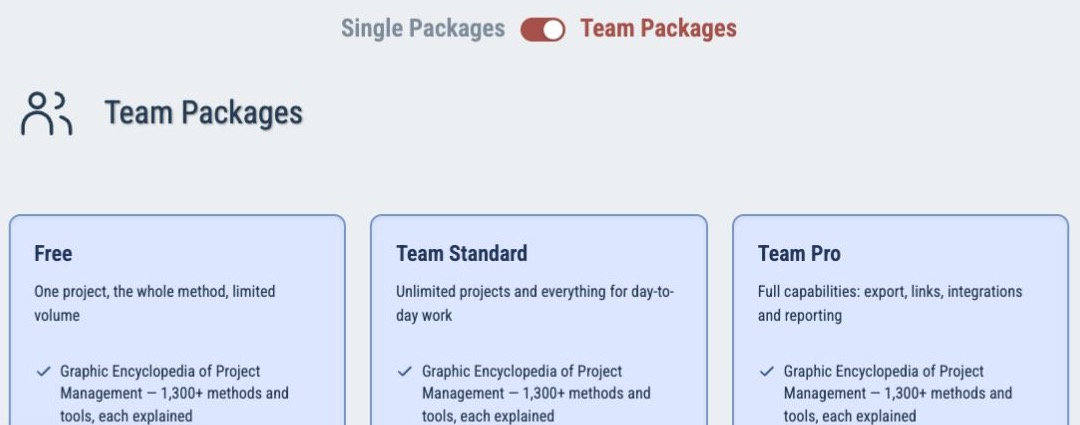
- Open Membership levels. Select Individual Packages or Team Packages, then compare features and the billing unit. An individual price is for one account. A team price is per paid seat. The team cards show a minimum of three seats.
- Before confirming checkout, check the plan name, seat count, total and renewal terms on that screen. If the details differ from the plan card, stop and contact support with the plan name and the displayed details.
- After activation, open My membership. Check your active subscription, next charge and renewal status. Use the actions shown for your subscription to manage renewal or review a change before confirming it.
Manage a team and its seats #
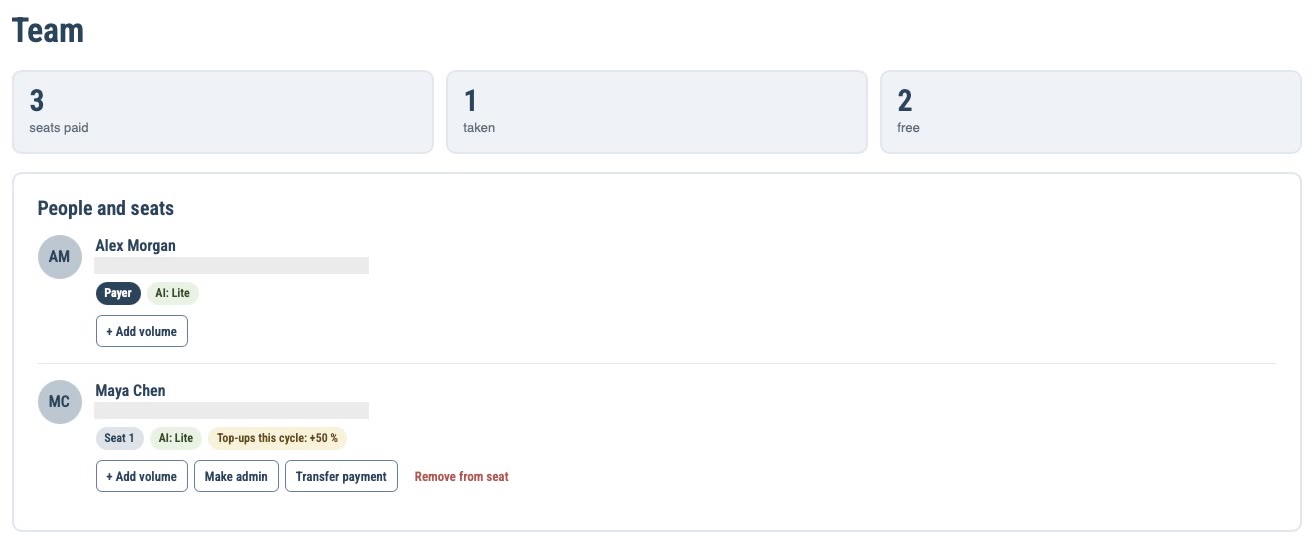
For an active team subscription, the billing owner opens My membership → Team and seats. If your account belongs to multiple teams, select the team you want to manage.
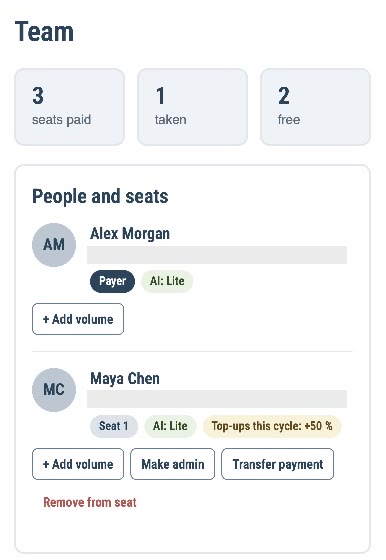
- Check the paid, occupied and free seat counts. An open invitation occupies a paid seat. The billing owner is listed separately from numbered member seats.
- Use People and seats to see members, their AI levels and top-ups for the current cycle. Open invitations are listed there and can be cancelled to free a seat. Seat quantity is a separate control.
- Use the team’s billing controls to review a change to paid seats or plan. If you see the option to transfer billing, review the projects you intend to keep before sending the offer. The new payer must complete checkout for the transfer to take effect.
The billing owner manages payments. A team administrator uses the people controls available to them. Project permissions and course enrolment have their own rules.
Check AI usage and add volume #
In TPM Tool, open AI level, pace and volume to check your assistant level, usage and the cycle reset date. Standard and Pro include Lite, as do paid team seats. The assistant level and usage allowance are separate.
- For a team seat, the billing owner selects Add volume next to the member in Team and seats. The member checks their own usage in TPM Tool.
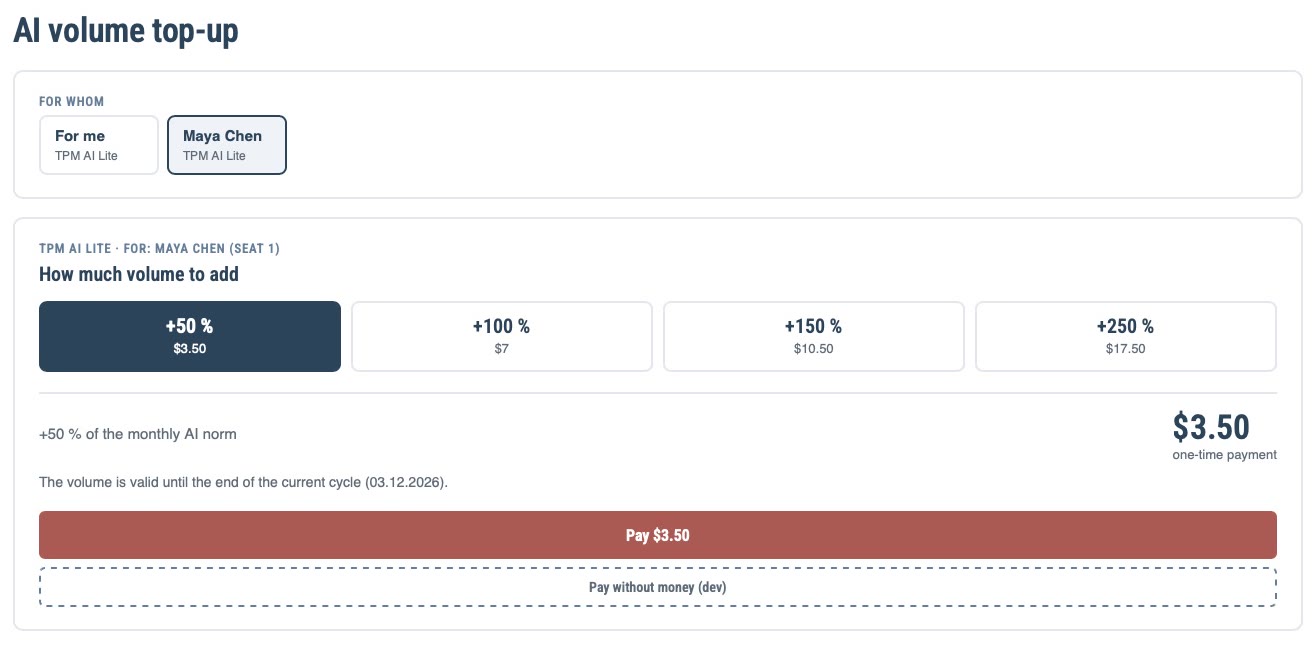
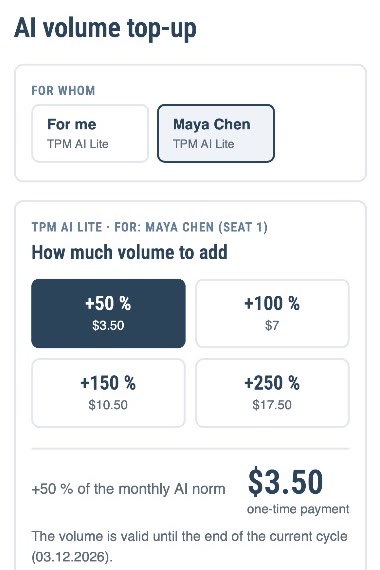
- On the top-up screen, check the recipient, choose a volume option and review the total. A top-up applies to that recipient for the current cycle. Unused volume expires when the cycle ends.
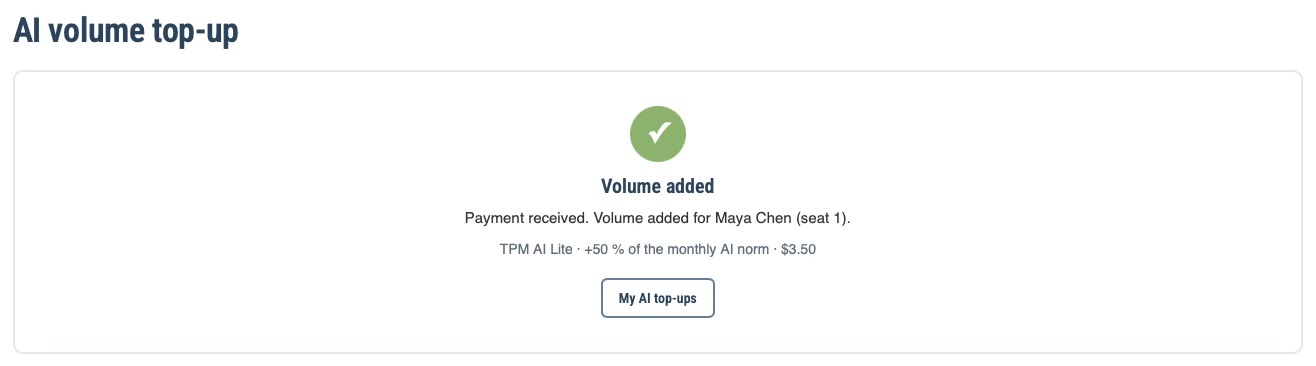
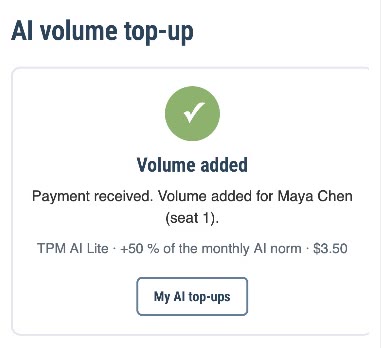
- After confirmation, open My AI top-ups from My membership. Check the purchase and its status there. If a repeated payment is marked as a duplicate, use the refund action if it is available for that entry.
Demo team Atlas. Alex Morgan adds 50% of the AI Lite allowance to Maya Chen’s seat. The screens are from the dev simulator.
Screens on a computer #
Screens on a phone #
Check an order #
In My workspace, open My Purchases → Orders. Find the relevant order and compare the item with the access you expected. If you need assistance with a payment or refund, use the Public offer and contact details on the site. Include the order reference and the specific issue. Do not assume a refund deadline or payment method that is not stated in your offer.
Personal access and shared work #
A membership does not by itself grant access to another person’s project. Project access and access by link are separate routes in My Projects. If a project opens as View only, check your project permission instead of treating that label as a payment error.
Interface reviewed on 12 November 2026. Screens shown are from the development environment.


